
get 500+ free images, templates & marketing strategies! You're one click away, Don't Miss It.

Included Free:
550+ Templates, Photos, & Strategies
Get New Free Downloads Monthly
Unlimited Downloads
Special offers & Trends Newsletter
Save and sort your favorites
Access 500+ Free Templates, Photos, & Strategies With A Free Account
Free User Creation for Popup
By creating an account, I agree to Ivory Mix's Website terms, Privacy Policy and Licensing Terms
Already have an account? Log in
How to Create a Pinterest Carousel Pin (Using a Simple Workaround)
This post may contain affiliate links. Please read the disclaimer
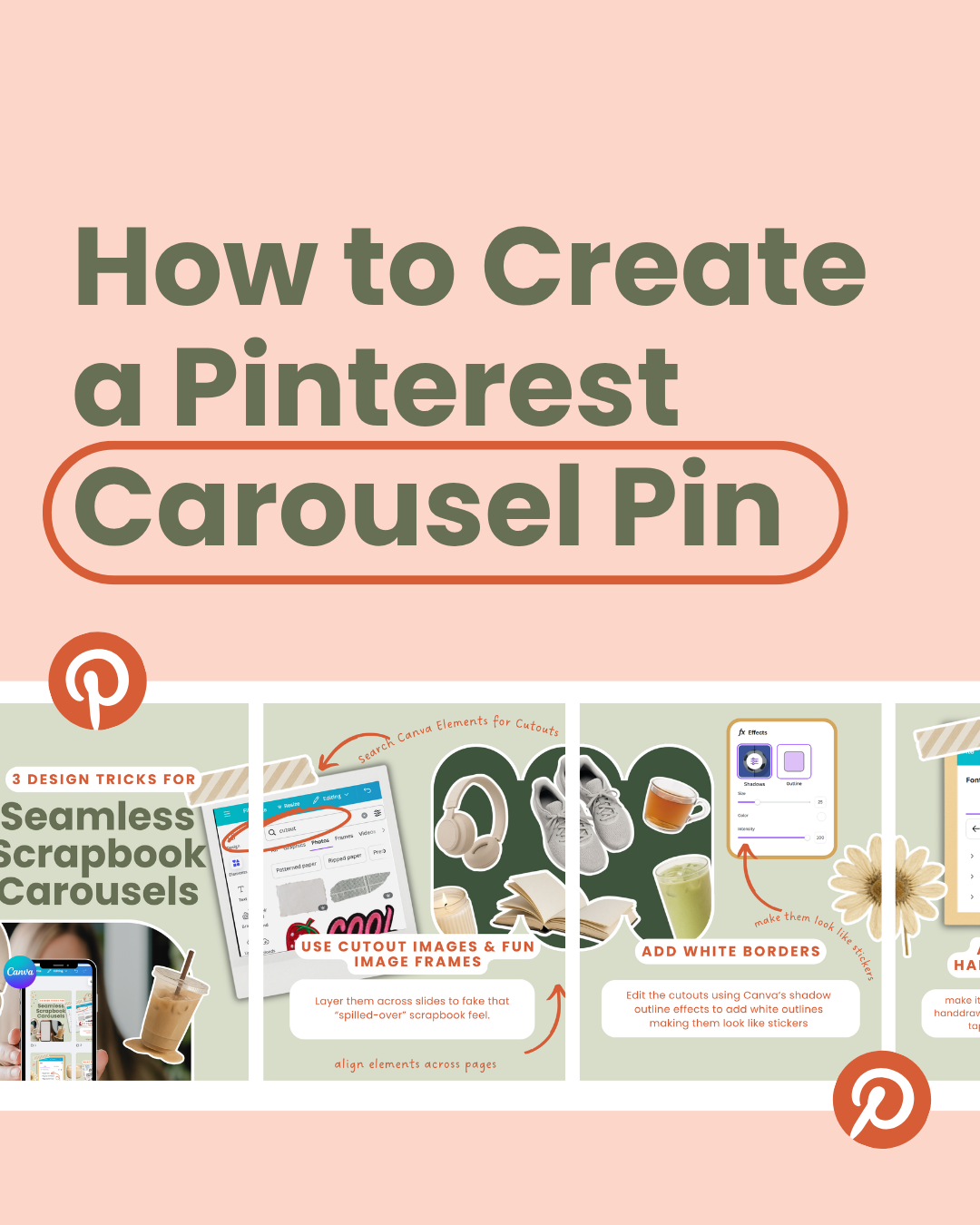
Pinterest doesn’t officially make carousel pins very obvious to create.
In fact, if you’ve ever tried uploading multiple images the normal way, you’ve probably noticed that the carousel option doesn’t appear.
After a little experimenting, I found a simple workaround that unlocks the carousel feature and lets you create up to five swipeable slides using your own content.
Here’s exactly how I do it.
Want a head start?
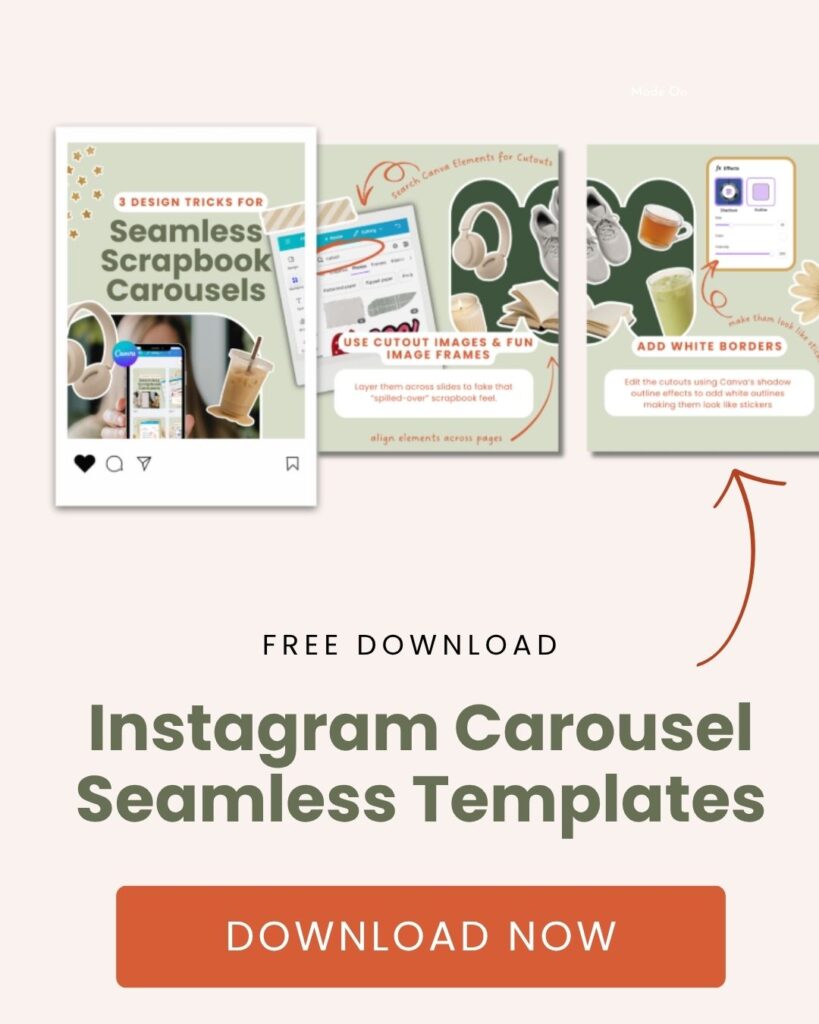
If you’d rather not build your carousel from scratch, grab my free Carousel Canva Template and customize it for your own content.
Grab this free Canva carousel template I made for you!
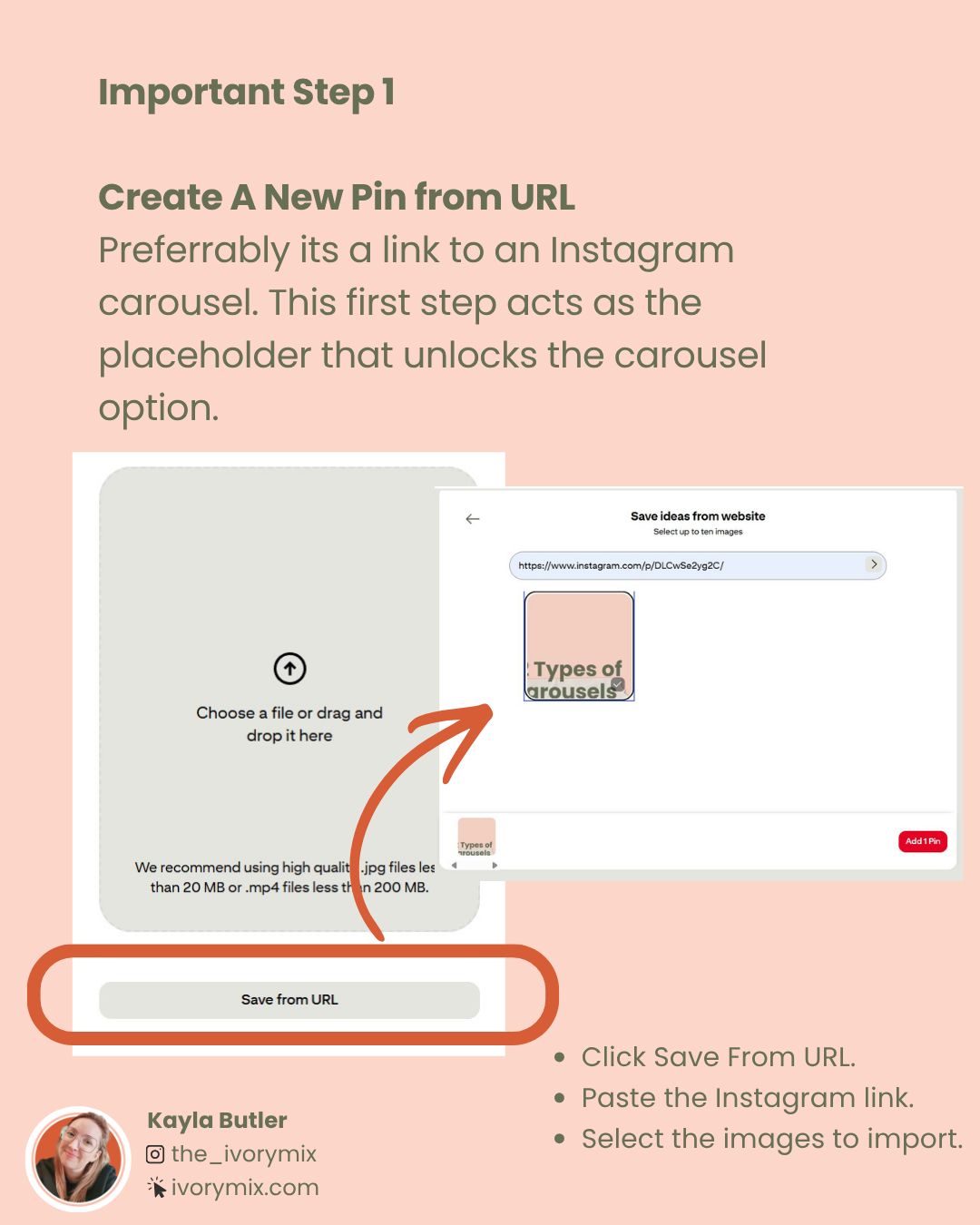
Step 1: Create a New Pin Using an Instagram Carousel Link
Start by creating a new pin on Pinterest using the desktop version.
Instead of uploading your own images right away, click Save from URL and paste the link to an existing Instagram carousel post.
This is the trick that unlocks the carousel feature.
Pinterest recognizes the Instagram carousel and imports the slides as a carousel pin.
Once the images appear, select them and continue.
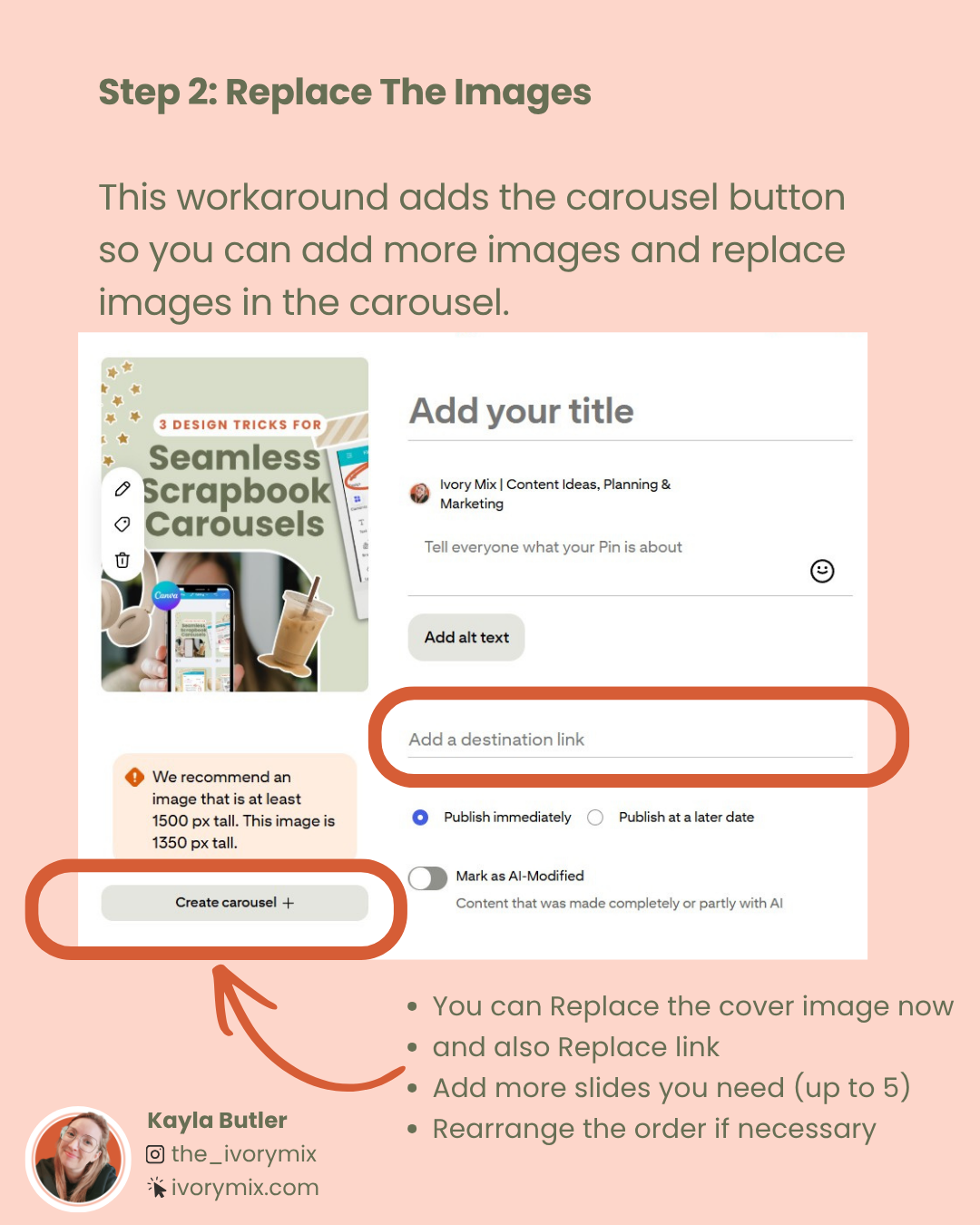
Step 2: Replace the Imported Images With Your Own
After the Instagram carousel has been imported, you’ll notice something new.
A Create Carousel button appears.
This is where the magic happens.
Now you can:
• Replace the imported cover image.
• Upload your own carousel slides.
• Add additional slides as needed.
• Rearrange the order.
• Update the destination link.
• Edit the title and description.
At this point, the Instagram images have done their job. They simply acted as placeholders to unlock the carousel format.
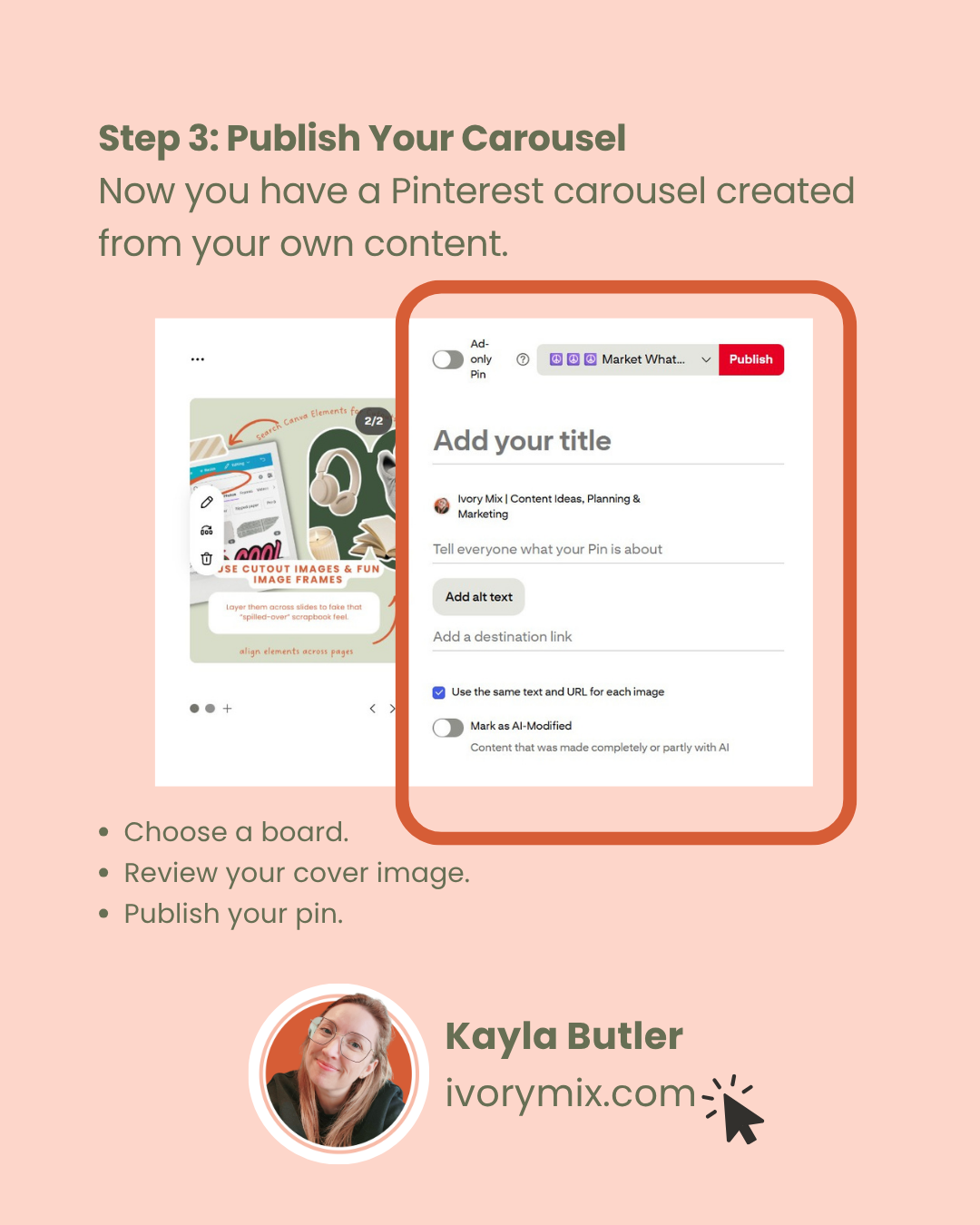
Step 3: Publish Your Carousel Pin
Once your slides are uploaded and arranged the way you want them:
• Choose your board.
• Add your title.
• Add your description.
• Review your cover image.
• Publish your pin.
That’s it.
You now have a Pinterest carousel pin created entirely from your own content.
A Few Things to Know
At the time I’m writing this, Pinterest carousel pins allow up to five slides.
Because this method relies on Pinterest recognizing an imported carousel, it’s possible Pinterest could change the process in the future.
But for now, this is the easiest workaround I’ve found.
Why I Like Carousel Pins
Carousel pins give people a reason to interact with your content.
Instead of seeing one static image, they can swipe through tips, tutorials, lists, before and after examples, checklists, frameworks, and mini lessons.
I’ve been using them for tutorials, design tips, content ideas, and educational posts that would normally be difficult to fit into a single pin image.
If you’ve been wanting a way to share more information inside one Pinterest pin, this is a great format to experiment with.
And if you’re creating content for Pinterest regularly, it’s worth adding a few carousel pins into your content mix. They stand out, encourage engagement, and give you more space to teach something useful.
Ready to create your first Pinterest carousel?
Grab this free Canva carousel template I made for you!
Included Free:
550+ Templates, Photos, & Strategies
Get New Free Downloads Monthly
Unlimited Downloads
Special offers & Trends Newsletter
Save and sort your favorites
Access 500+ Free Templates, Photos, & Strategies With A Free Account
Free User Creation for Popup
By creating an account, I agree to Ivory Mix's Website terms, Privacy Policy and Licensing Terms
Already have an account? Log in